


ColorNote Notepad Notes
4.9259.74K Reviews
App Specs
- Version
- 4.8.6
- Updated On
- License
- Free
- Downloads
- 100,000,000+
- Developer
- Notes
- Categories
- Productivity
- Platform
- Android, iOS
Screenshots
 Analysis by AppCompare
I reach for a note-taking app when I need to capture something before it slips my mind, not when I want to build a complicated personal system. That is the kind of everyday job ColorNote Notepad Notes is made for: quick writing, simple organization, and checklists I can tick off as I go. Its focus is practical rather than elaborate, which is exactly why it can be useful—and why it will not suit everyone.
Getting Started with ColorNote
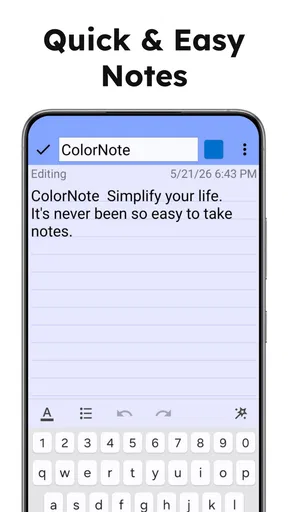
Once you download ColorNote Notepad Notes, you'll notice that it's super easy to set up. The interface is clean and intuitive, which is a huge plus if you’re not a fan of overly complicated apps. No need to jump through hoops to create a note—just tap, type, and you’re good to go.
What the free version gives you
ColorNote is a free productivity app from the developer Notes, and the straightforward entry point is a meaningful part of its appeal: you can start using it without paying upfront. The app is rated for Everyone, and its current version is 4.8.4. There are in-app purchases priced from $1.99 to $15.99 per item, so “free” does not mean there are no paid items at all. I would treat the basic free access as the reason to try it, not assume that every optional purchase is necessary for ordinary note-taking.
The app has an average rating of 4.9 from around 3.9 million ratings, alongside about 259,000 written reviews and over 100 million installs. Those figures suggest that this simple approach has found a large audience, though popularity alone cannot tell you whether its workflow fits yours. I’d judge it by how quickly you can capture and retrieve the information you actually need.
Features That Stand Out
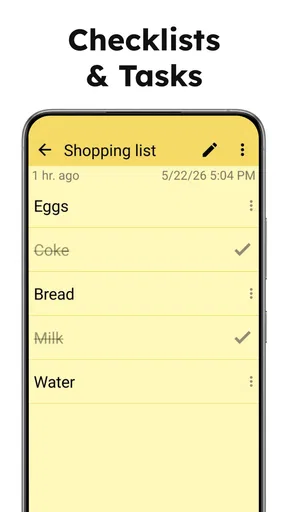
This app isn't just your average notepad. It’s loaded with features that make organization a breeze. You can create text notes or checklists, depending on what you need. The checklist feature is particularly handy for grocery lists or tasks you need to check off. It feels so satisfying to see those little check marks fill up!
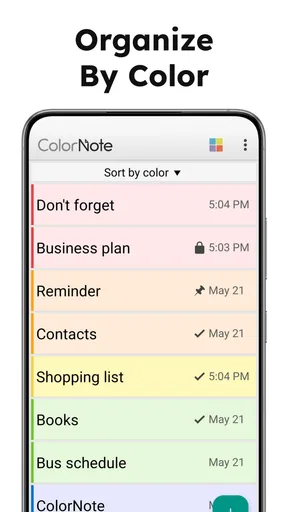
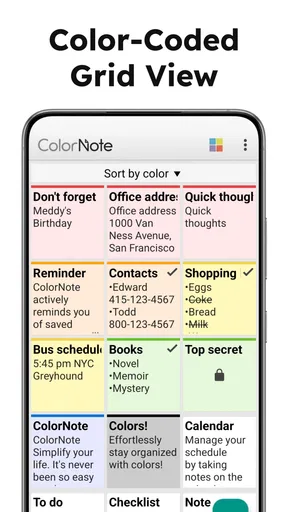
One of the cool things about ColorNote is its color-coding system. You can assign different colors to your notes, which is great for visual learners. I love this feature because it helps me prioritize my tasks at a glance. Need to remember something urgent? Just make it red!
A useful way to keep colors from becoming decoration is to give each one a consistent job. For example, I might reserve one color for errands, another for work ideas, and a third for household lists. That turns the note screen into a quick visual index without requiring a deep folder structure. The trade-off is that color only helps if you remember your own scheme; if every note gets a different shade, it stops communicating priority.
Worth Reading Before You Choose

Flipboard Shows What News Apps Must Do Beyond the Feed

Switching to Android Auto Means Rethinking Your Driving Routine

Google Calendar Makes a Crowded Week Easier to Manage

Ludo King Makes the Most of the Minutes Between Plans

Baby Panda World Brings Quick Play to Modern Phones, but Its Game Library Feels Busy

ESPN’s Live Game View Makes Following Close Games Easier
Checklists also work best when I keep them focused. A grocery list is easy to scan and clear item by item, while a long-running project with many stages may be harder to manage in a basic checklist than in a dedicated task manager. I’d use ColorNote for the next handful of actions, not as a substitute for a project board with owners, due dates, and dependencies.
Syncing and Backup
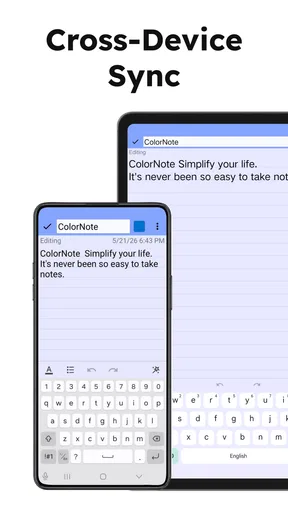
Now, let’s talk about syncing and backup. Nobody wants to lose their important notes, right? ColorNote has got you covered. You can sync your notes across devices by signing in with your Google account. This feature is a lifesaver if you switch between your phone and tablet frequently.
Plus, it offers online backup, so you won’t lose your notes even if you lose your device. It’s reassuring to know that your notes are safe and sound, tucked away in the cloud. Seriously, peace of mind is just a tap away.
For a practical routine, I’d make sure a new note has had a chance to sync before relying on it from another device, especially if I have just made an important change. Syncing is most valuable for someone who genuinely moves between devices; if you use one phone and rarely switch, a simple local workflow may be enough. Either way, I would not treat any notes app as the only copy of something irreplaceable. Keep essential information in a form you can recover if you lose access to an account or device.
This is also where the choice of account matters. The Google sign-in route is convenient if that is already part of your routine, but it may be less appealing if you prefer to keep notes separate from that account or avoid cloud syncing. If that preference is important to you, check the app’s current settings and decide whether its available backup approach matches your comfort level before putting sensitive material in it.
Widgets and Reminders
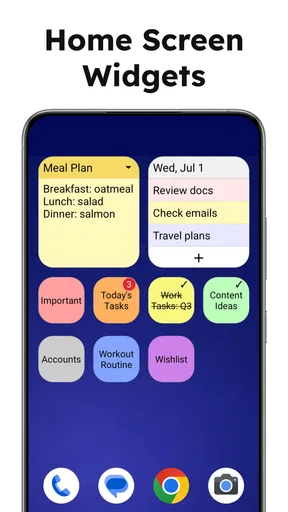
ColorNote also comes with handy widgets that you can place on your home screen. This is perfect for quick access to your notes without having to open the app. You can choose between different widget sizes and styles, which adds a nice touch of customization.
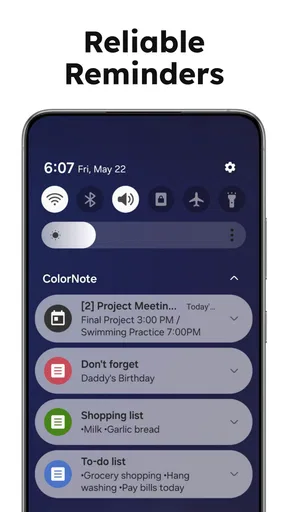
And let’s not forget about reminders! You can set alarm reminders for your notes to ensure you never miss a deadline. It’s like having a personal assistant who nudges you when something important is coming up.
The strongest widget use, in my experience, is putting one short, frequently needed note where I can see it without searching: a packing checklist before a trip, for instance, or a list of errands for the afternoon. I would avoid placing a long, private note on the home screen just because it is convenient; visibility can be a drawback when other people can see the display. Keep widgets for information that benefits from being glanceable.
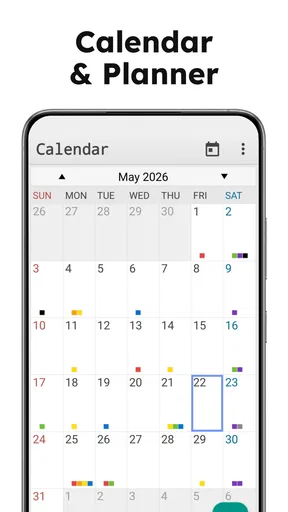
Reminders are useful for a note tied to a specific moment, such as remembering to take something along before leaving or to follow up on a small task later. They are less suited to managing a schedule with many linked appointments. I’d pair them with a calendar when timing, invitations, or recurring commitments matter, rather than expecting a notepad reminder to replace a full calendar workflow.
A realistic day with it
Imagine I’m heading out after work and need to pick up a few groceries, collect a parcel, and remember an idea for a weekend project. I can put the shopping into a checklist, keep the errand in a separate note, and capture the idea in plain text before it disappears. A color distinction can help me spot the list I need, while a reminder can nudge me about the parcel. This is a small, believable routine where the app’s mix of notes, checkboxes, colors, and reminders earns its place without asking me to maintain a complicated setup.
The same simplicity helps with quick study notes, a short packing list, or a running list of questions to ask at an appointment. For longer research, I would use a document or a note-taking tool built around linked pages and richer organization. ColorNote is at its best when each entry is small enough to understand at a glance and easy to act on immediately.
User Experience and Design
The user experience is smooth and seamless, with no lag or crashes, which is a breath of fresh air. The design is minimalist but very functional, focusing on what matters: getting your thoughts down quickly and efficiently. Navigation is straightforward, making it ideal for users of all ages.
That directness is also a clear trade-off. People who want a large knowledge base—with nested folders, elaborate tags, rich formatting, or a web of cross-linked notes—may find a simple notepad limiting. I would choose a more structured notes service if I needed to develop long documents, collect reference material from many sources, or search across a heavily organized archive. ColorNote makes more sense when speed and low setup effort matter more than building a sophisticated system.
Compared with a paper notebook, it is easier to edit a checklist and keep a note available on a phone, but paper may feel better for sketching, free-form writing, or stepping away from a screen. Compared with a full-featured digital notes app, ColorNote asks less of you at the start, while usually offering fewer tools for complex organization. For me, that is not a flaw to ignore; it is the decision to make. Choose it for quick personal capture, not because you expect every kind of information management in one place.
Oh, and did I mention it’s free? Of course, there are ads, but they’re not intrusive. If they do bug you, there’s an option to remove them with a small fee. Totally worth it if you ask me!
On cost, I’d separate the basic free access from the optional in-app purchases rather than assume a purchase is required to make useful notes. The listed paid items range from $1.99 to $15.99 each, but the right question is whether a particular paid option solves a problem you actually have. I would try the everyday workflow first and only consider spending if the app’s current purchase details make clear that the item addresses a real annoyance. I would not pay simply because an app has a long feature list.
One small habit can make the free workflow feel more organized: title notes so their purpose is obvious, and keep temporary lists separate from information you expect to revisit. A label such as “This week’s errands” is easier to recognize later than a vague title. When a task is done, clear or retire it rather than letting completed items clutter the active list. These habits matter more here than building a complicated taxonomy.
Who will get the most value
I’d recommend ColorNote to someone who wants an uncomplicated place for reminders, short thoughts, and practical checklists. It is especially appealing if you prefer visible color cues, want to reach a note from a home-screen widget, or switch between a phone and tablet using Google sign-in. Students can use it for quick revision prompts and packing lists; busy households can keep separate shopping and errand notes; anyone who often thinks “I’ll remember that” can use it to capture the thought immediately.
I’d skip it if your work depends on shared editing, detailed task assignments, a calendar-first system, or carefully linked research notes. In those cases, a collaboration app, dedicated planner, calendar, or more advanced notes platform is likely a better fit. I’d also hesitate to store highly sensitive information in any convenient quick-note tool without first checking the privacy and account choices that matter to me. Convenience is not the same thing as a secure record-keeping plan.
Final Thoughts
All in all, ColorNote Notepad Notes is a fantastic app for anyone who needs a reliable and feature-rich note-taking tool. Whether you’re a student, a professional, or just someone who loves staying organized, this app has something for everyone. It’s simple, efficient, and incredibly handy.
If you haven’t tried it yet, I highly recommend giving it a shot. You can find the download links for both Android and iOS on our site. Happy note-taking!
My buy-or-skip verdict is simple: start with the free app if you want a fast, personal notepad and see whether its checklist, color, widget, and reminder habits fit naturally into your day. Consider a paid item only when you know what it offers and why you want it. Skip it in favor of a more specialized alternative if your notes need deep structure, collaboration, or a complete planning system. For quick capture and everyday lists, I find the low-friction approach more valuable than a longer feature menu.
Pros
- User-friendly interface for quick note-taking.
- Supports color-coding for easy organization.
- Offers backup and sync options for security.
- Widgets available for faster access on home screen.
- Search function helps locate notes efficiently.
Cons
- Limited text formatting options available.
- No collaboration features with other users.
- Ads can be intrusive in the free version.
- Lacks advanced organization tools like folders.
- No cross-platform support beyond mobile apps.
FAQs for ColorNote Notepad Notes
What features does ColorNote Notepad Notes offer?
ColorNote Notepad Notes provides a simple and intuitive interface for creating notes and lists. It includes features like color-coding, reminders, calendar integration, and the option to sync notes across devices. Users can also lock notes with a password for added security and easily organize tasks using checklists.
How can I sync my notes across multiple devices?
To sync your notes across multiple devices, you need to sign in with your Google or Facebook account. Once logged in, ColorNote will automatically synchronize your notes to the cloud. This allows you to access your notes on any device where you have the app installed and are signed in.
Is ColorNote Notepad Notes secure?
Yes, ColorNote Notepad Notes offers several security features. You can lock individual notes with a password to keep sensitive information private. Additionally, syncing your notes with a Google or Facebook account ensures they are backed up securely in the cloud, preventing data loss.
Can I use ColorNote offline?
Yes, ColorNote Notepad Notes is fully functional offline. You can create, edit, and organize notes without an internet connection. All changes will be saved locally on your device and will sync to the cloud once you reconnect to the internet, ensuring your notes are always up-to-date.
Are there any ads or in-app purchases in ColorNote?
ColorNote Notepad Notes is free to use and does not contain any ads or in-app purchases. This makes it an excellent choice for users seeking a straightforward and distraction-free note-taking app without any additional costs or interruptions.


